
Implementation Guide
Implementation Guide Panel
The Implementation Guide Panel offers a list of Implementation Guides created for the project. An Implementation Guide (IG) is a collection of artefatcs, definitions, explanations and instructions for Implementations in applications. 

When opening the Implementation Guide Panel, the Navigation Card on the left 1 shows the list of Implementation Guides of the Project (left tab), once a guide is selected, the pages tab shows the hierarchical list of pages of the selected IG.
This is the symbol of an Implementation Guide used throughout the app.

Adding a New Implementation Guide
To add a new Implementation Guide use the small menu in the Navigation Card and use the ADD button.

To create selective Implementation Guides, a Transaction based filter can be defined 1.

To define a Transaction based filter the corresponding dialog shows a list of Transactions that can be selected 2. A label must be given to name the filter 3.

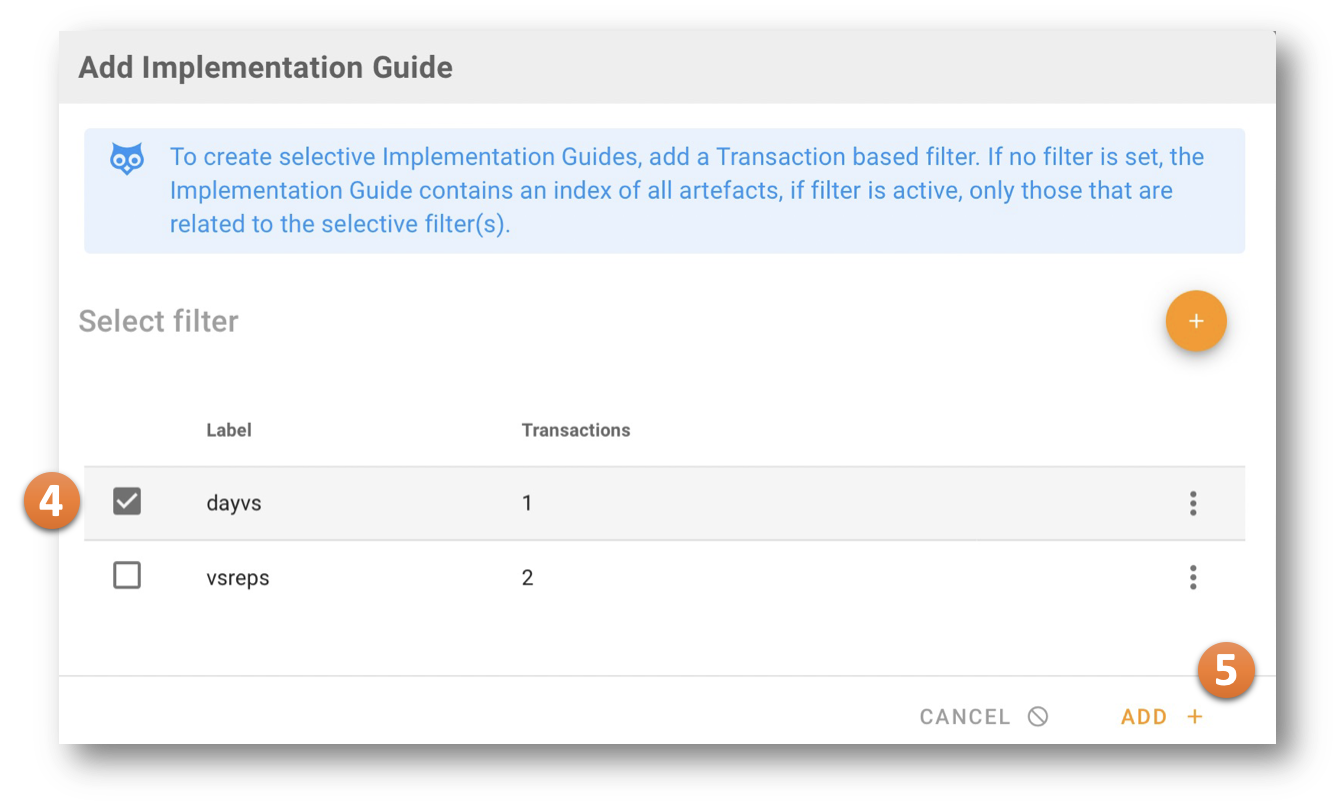
If no filter is set, the Implementation Guide contains an index of all artifacts, if filter is active 4, only those that are related to the selective filter(s). Clicking on ADD 5 triggers the creation of a blank Implementation Guide.
The new Implementation Guide immediately appears in the Implementation Guide List. In the background the selected artifacts are collected from the underlying project. Once compiled they appear in the Implementation Guide Meta Data tab under "Resources".

Implementation Guide Meta Data
When creating a new Implementation Guide, all selected artifacts based on one or more Transactions (Scenarios) are collected from the underlying project by a background process. Once compiled they appear in the Implementation Guide Meta Data tab under "Resources" 2. This might take a minute or two until complete, while other meta data of the Implementation Guide are immediatley available 1. As usual, a versionable artifact in ART-DECOR (such as an Implementation Guide) have a name/title, a unique id, a status and a Version Date (the date, the IG came into being). The Version Date might be annotated with a human readable Version label (e.g. "v1.0") 1.

Managing Implementation Guide Content
The left side of the Implementation Guide 1 shows the Guides List in one Tab, by clicking on a concrete Implementation Guide you will be directed to the (hierarchical) list of Pages.
There is one "root" Page, initailly called Index Page. When selecting a page the details/contents of that page is shown on the right area of the Panel 3. You can see the name/title of the page, and a button to the very right 3 that allows you to edit the page contents.

Adding New Pages
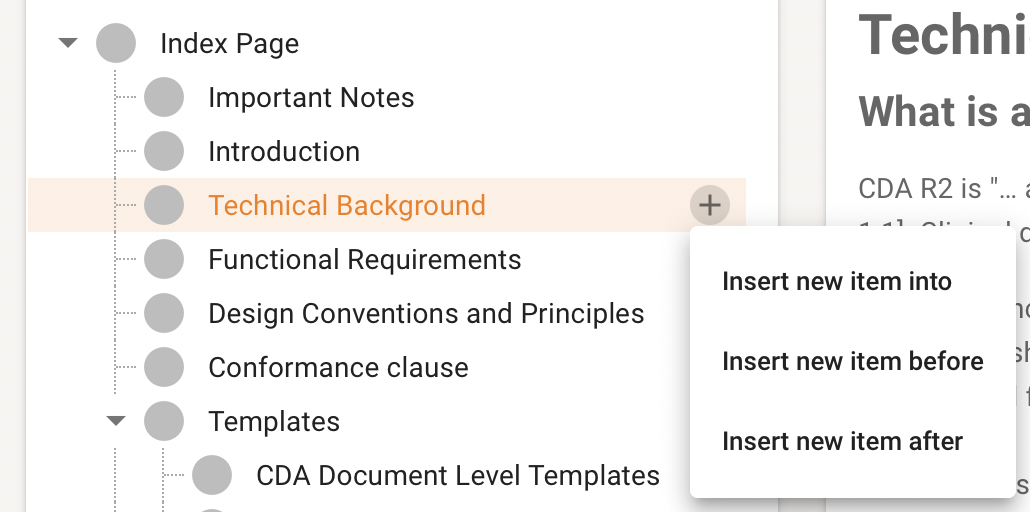
Hierarchically nested under the "root" page (Index Page initially, but it may be renamed), you can add additional pages or sub pages by using the (+) menu in the Navigation Tree of each page. It allows you to Insert a New Page (sub page) under an exsting one, or a new page before or after an existing one (on the same level).
Page Navigation
Once there are many pages that are displayed as a tree in the Navigation Tree on the left of the Panel 1. There is a Search Fields provided where you can search for title or content of the pages 2. There is an expand button to expand the whole Navigation Tree at once to see all pages and a Hamburger menu that offers you context specific further action options 3.

Moving Pages around
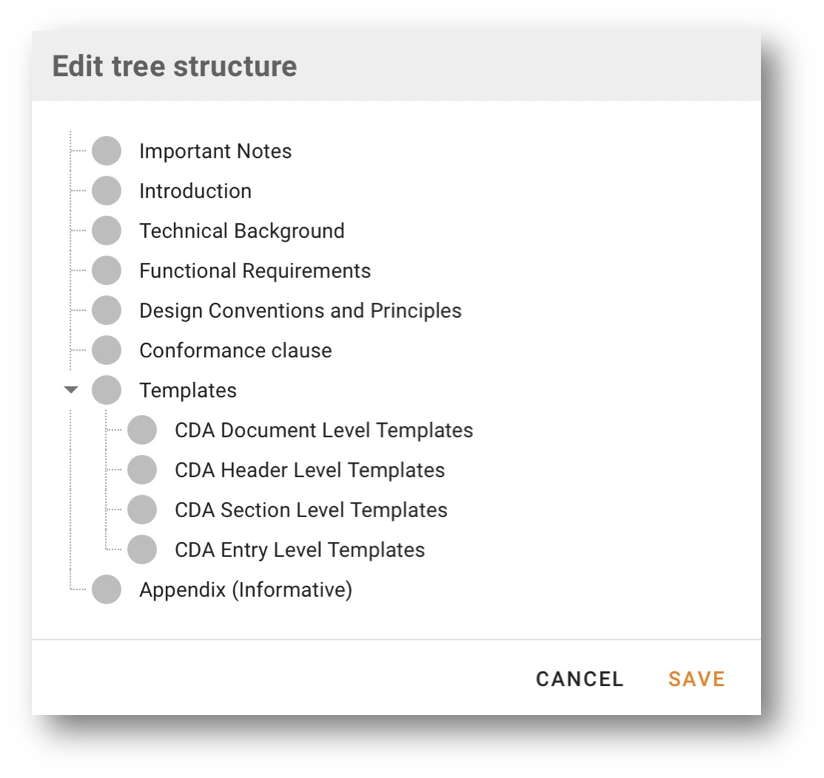
If you have many pages already defined in your Implementation Guide you can move single pages around in the Tree of pages by using the Hambuger menu item in the Navigation Tree on the right.

For moving a page, the whole tree is shown and you can simple drag and drop the pages within the tree for any re-arrangement of sequence or hierachy. Please note that there is always a "root" page that cannot be moved.
Editing Pages
If you select a page 1 and click in the EDIT button 3 you will see the usual ART-DECOR text editor to edit page contents. Of course this is only possible if you a a project author and may edit artifcats of the project at all.
During edit of a page SAVE can be clicked to intermediately store the page changes, or SAVE AND CLOSE to also leave the edit mode or an edit session can be cancelled.

Adding Images
You can add images / figures to the page contents by drag and drop of an image or by clicking on the image icon to select an image from your local computer.


Adding Artifact References
While editing a page contents you may add a reference to an artifact into the running text or somehow exposed. To add an artifact reference click on the ADD ARTIFACT REFERENCE icon in the Editor Toolbar.

This opens a selection dialog with all artifacts offered as a reference in this Implementation Guide. Zou need to select the type of artifact first and then the offered specific item.

They appear as little icons in the text editor ...

... and can be changed by clicking on it (a dialog appears).

Post-Processing Implementation Guides and Publication
Triggering a Publication
In order to publish an Implementation Guide you trigger a Publication in the Project Publications panel. Please refer to the documentation how to get started.
Publication Site
Upon request a submitted publication is published typically on a landing at a certain location, the Publication Landing Page. This is either a provided by ART-DECOR Open Tools or self-hosted. The Release and Archive Manager (ADRAM) processes the requests and put them on the right spot once ready.
The list contains Recent and Archived Publications. There might be complete Publications for a project or use case drive so-called Scenario Publications.
The status 1 is indicated and can be maintained (e.g. set to final, depreacted etc.) from the ART-DECOR Project Publications Panel.
The HTML colum 2 leads to either a link to browse the HTML publication in the classic style (in use since the 2012) or to download the entire publication in classic HTML. In the future there is option to also use ART-DECOR's NextGeneration Publication Method also for these kind of publications. Until then the NextGen Publications are only used for the Implementation Guides.
Next column 3 shows all Implementation Guides (IG), whether a FHIR IG, a CDA IG or a pure IG containing Termninology only (or a mix of all). Specific symbols denote their type.
Whether a PDF of the publication is available for download 4, or Schematron is generated 5 or an XML package is rady for download 6 is shown in the subsequent columns. Empty colums do not appear as there are no items to show. Finally a comment column 7 is shown.

NextGen Publications
As of now ART-DECOR's NextGeneration Publication Method is only used for Implementation Guides (IG). Later in time this method is also possible to choose for usual publications.

Packages
(following)
